
Why Your System Might Fail
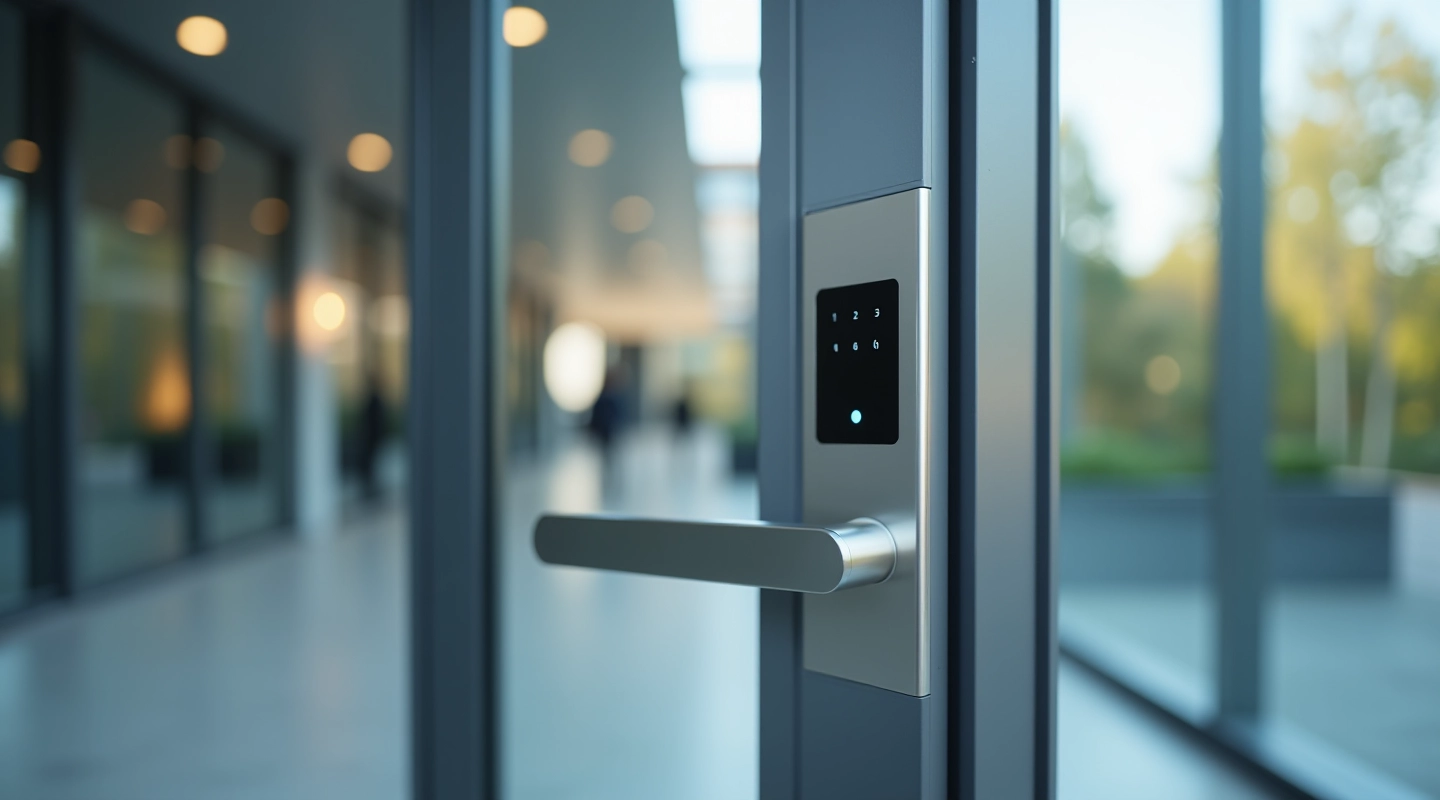
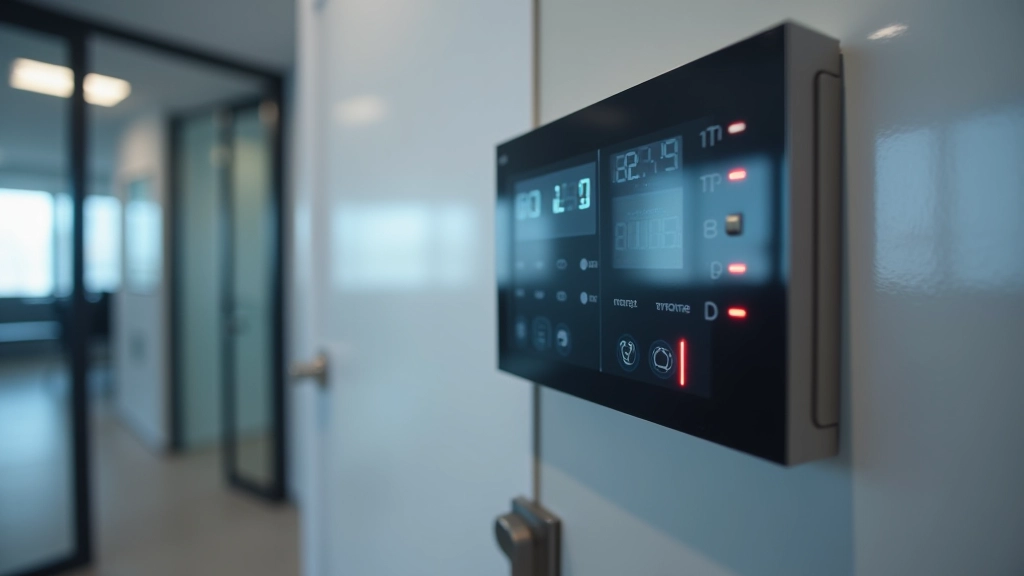
Access control systems are generally reliable, but they're complex pieces of hardware and software working together. When something goes wrong, it's usually one of a handful of common culprits. The key is knowing what to look for before you panic and call for service.
Most problems fall into three categories: power issues, connectivity problems, and software glitches. We've all had that moment where a card reader stops responding or a door won't unlock for someone with the right credentials. It's frustrating, but it's also usually fixable if you know what you're doing.

Battery Problems: The Most Common Culprit
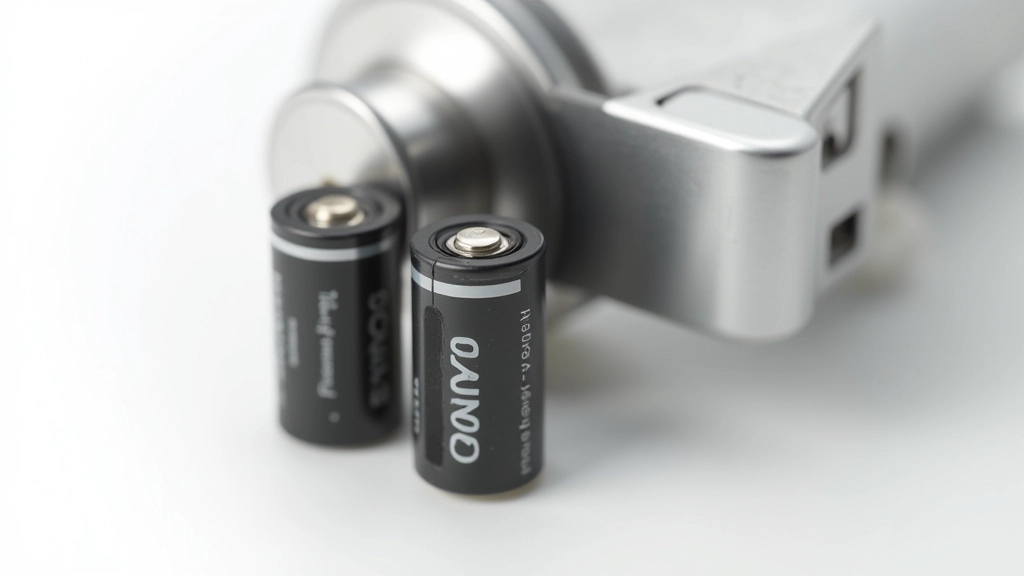
Dead batteries are responsible for roughly 40% of access control failures we see. Most electronic locks run on AA or AAA batteries, and they'll drain faster than you'd expect, especially in heavy-use areas.
Here's what happens: The lock starts responding slowly to valid cards. You'll notice a slight delay between tapping the card and hearing the click. Then it gets worse — some cards won't work at all. Eventually, the lock won't respond to anything. That's your sign the batteries are nearly dead.
Battery Check Steps
- Open the lock housing (usually requires a special tool or key)
- Note the battery type and installation date if visible
- Replace with fresh alkaline batteries — don't mix old and new
- Test the lock immediately with a valid card
- Set a reminder to check batteries every 12 months
Pro tip: Keep a spare set of the correct batteries on hand. When you replace them, write the date on the lock housing with a permanent marker. You'll know exactly when they were installed and can plan ahead for replacement.

Network and Connectivity Issues
If the locks work fine locally but your central system can't see them, you've got a connectivity problem. This could be WiFi, Ethernet, or the controller unit itself not talking to the software.
Network problems are trickier because there are more moving parts. You might have a weak WiFi signal, a disconnected Ethernet cable, or a corrupted network configuration on the controller. Start with the physical connections — they're the easiest to check and fix.
Walk to the controller unit and verify the cables. An Ethernet cable that's halfway unplugged won't show a clear problem, but it'll break your connection. If you're using WiFi, check signal strength. Controllers need a stable connection — a signal bouncing between bars won't work reliably.
If cables look good and WiFi signal is strong, restart the controller. Power it down for 30 seconds, then power it back up. This clears temporary glitches and often restores connectivity without any further troubleshooting.
Software Glitches and Database Issues
Sometimes the hardware is fine, but the software has a problem. You'll notice this when certain employees can't unlock doors even though their access should be active, or when the system randomly denies access to valid cards.
The most common issue is an out-of-sync access database. Your main system thinks someone shouldn't have access anymore, but that information hasn't reached the lock yet. Or the opposite — someone new was added to the system but the lock doesn't know about them yet.
To fix this, you'll need to resync the controller with the central system. This is usually done through the software interface. The exact steps depend on your system, but the principle is the same: tell the controller to pull the latest access permissions from the main database. This typically takes 5-15 minutes depending on how many users you have.
If resyncing doesn't work, check if there's a software update available. Outdated firmware on the controller can cause compatibility issues with your access management software. Updates are usually straightforward to install and often fix small bugs that cause intermittent problems.

How to Diagnose Problems Systematically
Check the Lock Status Light
Most locks have an LED indicator. Green usually means everything's fine. Red or orange means a problem. No light at all? Dead batteries. This tells you whether the lock itself has power and is functioning.
Test with a Known Good Card
Use an admin card or a card you know works on other locks. If this card works here, the problem is with that specific person's access permissions. If it doesn't work, the lock itself has an issue.
Check the Central System Logs
Log into your access control software and look at the logs for that specific lock. You'll see every access attempt — successful and failed. This tells you if the lock is communicating with the system and how it's responding.
Verify Physical Connections
Walk to the lock and check power cables, network cables, and anything connected to the controller unit. Cables can work themselves loose over time, especially in high-traffic areas.
Restart and Resync
Power down the lock or controller for 30 seconds, then power it back up. If it's a networked system, resync the access database after restart. Most issues resolve at this stage.
When to Call a Professional
You've checked batteries, connections, and software. The lock still isn't working. That's when you need professional help. Don't try to force it or open the lock if you're not trained — you'll damage it and make the problem worse.
Call a Technician If:
- The lock physically won't open even with a valid card after all basic troubleshooting
- Hardware damage is visible (cracks, loose components, water damage)
- The controller unit is unresponsive or won't restart
- Network issues persist after checking all cables and rebooting
- You're not comfortable accessing the system yourself
When you call, have this information ready: the lock model number, what you've already tried, any error messages from the software, and whether the problem is affecting one lock or multiple locks. This helps the technician diagnose faster.
Keeping Your System Reliable
Most access control problems are preventable with basic maintenance. Check batteries twice a year. Keep connections clean and tight. Update software when new versions are available. Monitor your system logs regularly so you spot issues before they become emergencies.
It's not complicated stuff. You don't need to be a technician to handle these checks. Just be methodical. Work through the problem step by step. And don't hesitate to bring in a professional when something's beyond your comfort level. That's what they're there for.
Important Disclaimer
This guide provides general information about common access control system issues and basic troubleshooting steps. Every system is different, and the specific steps may vary depending on your hardware and software. Always consult your system's documentation or contact the manufacturer before making changes. If you're uncomfortable performing any of these steps, contact a qualified technician. Improper troubleshooting can damage equipment or compromise security. This information is provided for educational purposes only and shouldn't replace professional technical support when needed.